How to Use the Scheme of Work Generator
Follow this step-by-step guide to create a professional, editable Scheme of Work. Set your timetable, select lessons, arrange content and download your document.
The generator has five main stages: Class, Timetable, Calendar, Content and Review. After generating your scheme, you can edit it before downloading.
Enter Your Class Details
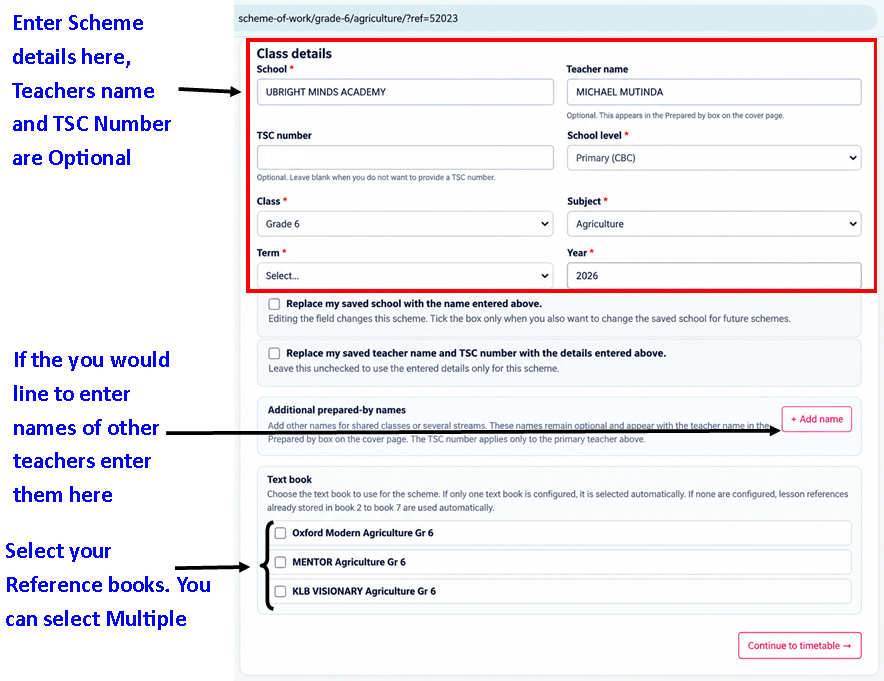
Enter your school name, select the school level, class, subject, term and year.
- Teacher name and TSC number are optional.
- Click Add name to include additional teachers on the scheme’s cover page.
- Select one or more reference textbooks.
- Choose whether to update your saved school or teacher information.
Click Continue to timetable.
Set Your Weekly Timetable
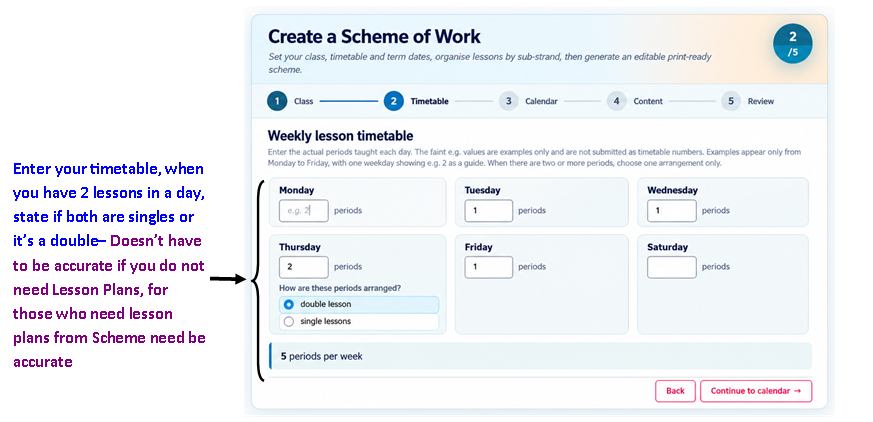
Enter the number of lessons taught on each day of the week.
When you have two lessons on one day, indicate whether they are two single lessons or one double lesson.
The generator automatically displays the total weekly periods.
Set the Term Calendar
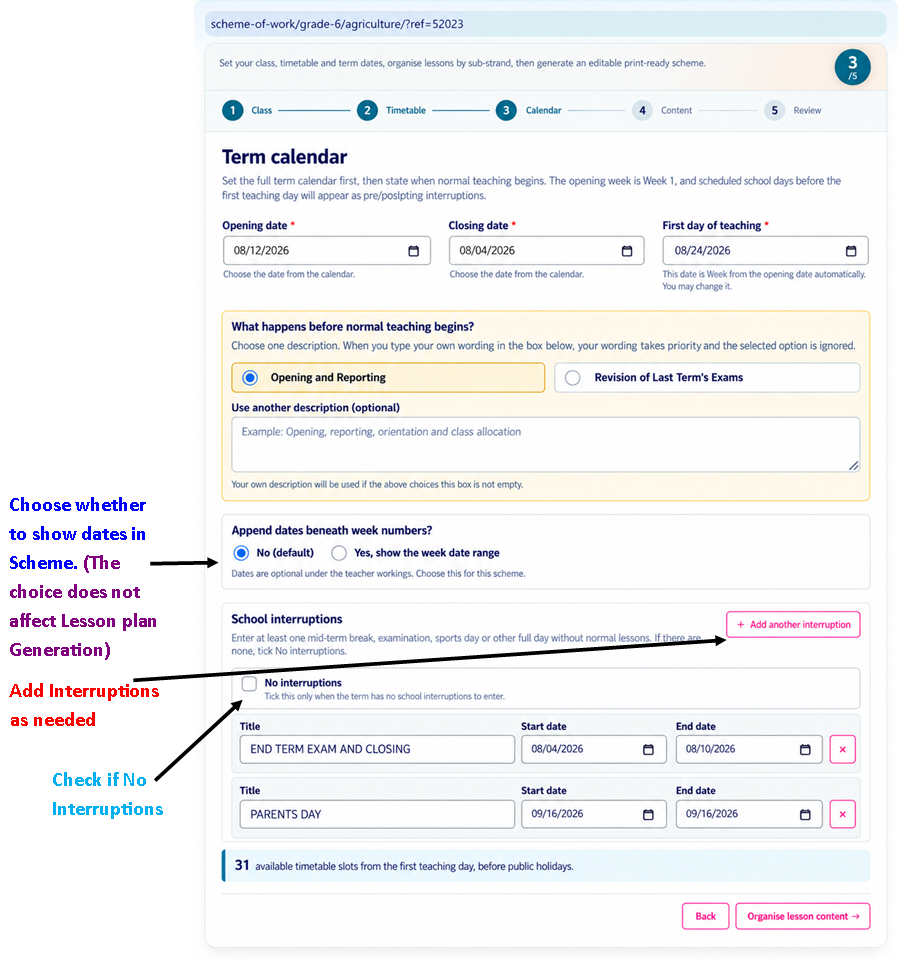
Select the term opening date, closing date and first day of normal teaching.
You can specify what happens before teaching begins, such as opening and reporting, revision or another activity.
- Choose whether week date ranges should appear in the generated scheme.
- Add interruptions such as examinations, parents’ days and other school activities.
- If there are no interruptions, select No interruptions.
Select Lessons for Your Scheme
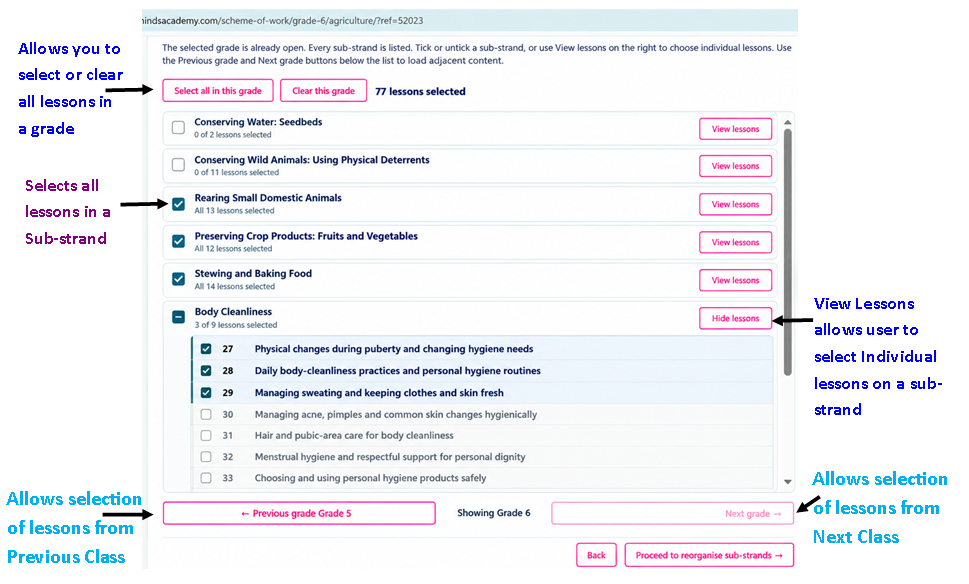
Choose the lessons you want included in your Scheme of Work.
- Select an entire sub-strand using its checkbox.
- Click View lessons to select individual lessons.
- Use Select all in this grade to select every lesson.
- Use Clear this grade to remove all selections.
- Use the Previous grade or Next grade controls to include lessons from adjacent grades.
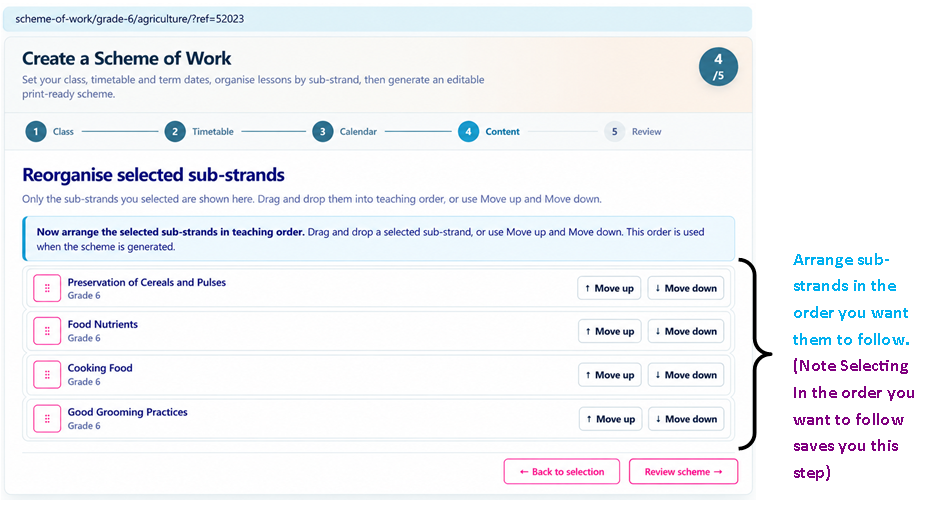
Arrange Sub-strands in Teaching Order
After selecting lessons, arrange the sub-strands in the order you want to teach them.
Drag and drop the sub-strands or use the Move up and Move down buttons.
Click Review scheme when satisfied with the arrangement.
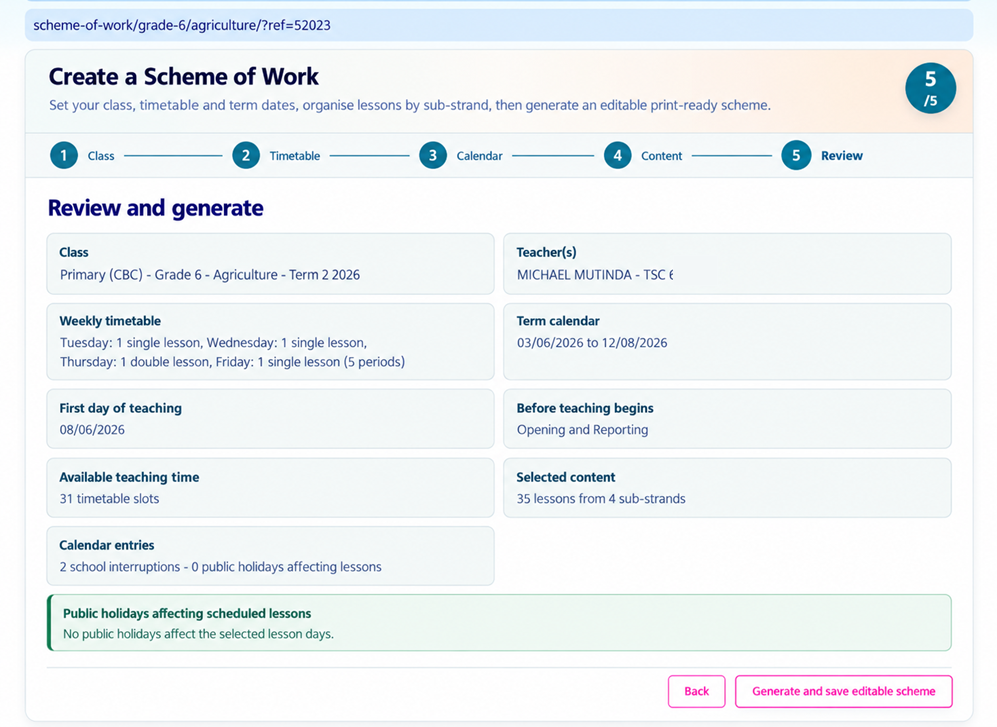
Review and Generate Your Scheme
The review page summarises your selected class, teachers, timetable, term calendar, interruptions and lesson content.
Check the information carefully. Use Back to correct any details.
When everything is correct, click Generate and save editable scheme.
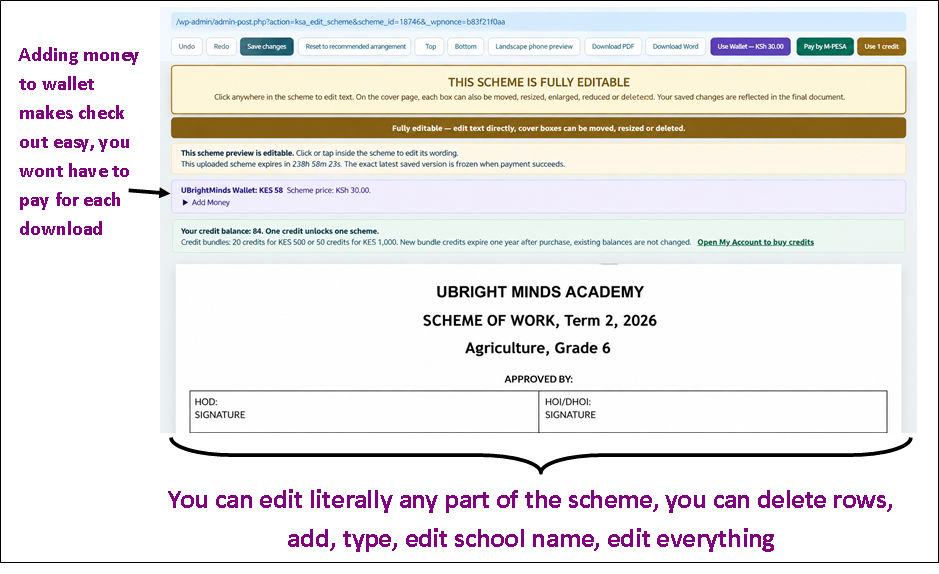
Edit and Download Your Scheme
Your generated Scheme of Work opens in a fully editable document-style preview.
You can edit text directly, change the school name, add or delete rows, and adjust the layout of the cover page.
- Use Save changes to preserve your edits.
- Use Undo and Redo when necessary.
- Preview the scheme before downloading.
- Download in PDF or Word format.
Available checkout options include M-PESA, wallet balance and credits. Check the current scheme price displayed in your account.
Ready to Create Your Scheme of Work?
You have learned how to use the Scheme Generator. Now create your professional, fully editable and print-ready Scheme of Work.
PROCEED TO GENERATE SCHEMES →